Introduction
Calculating age in Excel is a common task for HR teams, teachers, students, and anyone managing spreadsheets with dates of birth. Excel doesn't have a single built-in "AGE" function, so most people use functions like DATEDIF, YEARFRAC, or basic subtraction to get an accurate result. This guide walks through each method with real formula examples.
Method 1: Using the DATEDIF Function (Most Accurate)
DATEDIF is a hidden but powerful Excel function built specifically for calculating the difference between two dates in years, months, or days.
Formula
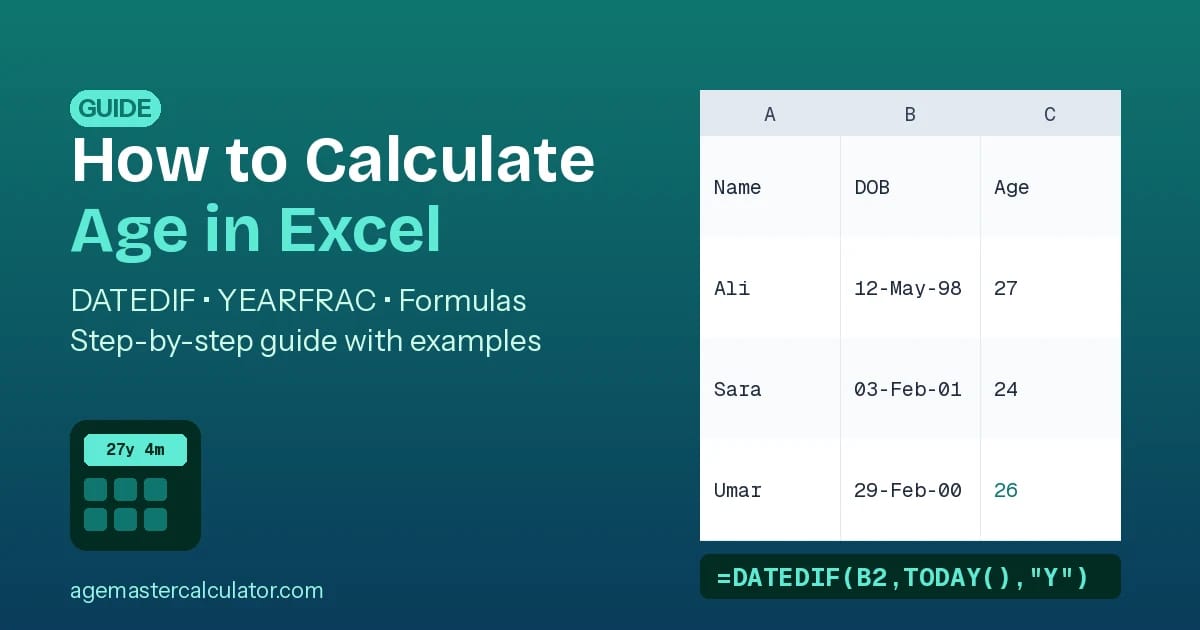
=DATEDIF(B2, TODAY(), "Y")Here, B2 is the cell containing the date of birth, and TODAY() automatically uses the current date. The "Y" argument returns the age in complete years.
Getting Years, Months, and Days Together
=DATEDIF(B2,TODAY(),"Y") & " years, " & DATEDIF(B2,TODAY(),"YM") & " months, " & DATEDIF(B2,TODAY(),"MD") & " days"This formula combines three DATEDIF calls to show a full breakdown, similar to the result you'd get from an online age calculator.
Method 2: Using YEARFRAC
The YEARFRAC function calculates age as a decimal value, which is useful for reports or averages.
=YEARFRAC(B2, TODAY())If you only need a whole number, wrap it with INT:
=INT(YEARFRAC(B2, TODAY()))Method 3: Simple Subtraction Formula
For a quick estimate, you can subtract the birth year from the current year and adjust for whether the birthday has occurred yet:
=YEAR(TODAY())-YEAR(B2)-IF(TODAY()<DATE(YEAR(TODAY()),MONTH(B2),DAY(B2)),1,0)This method works well but is more prone to errors than DATEDIF, especially with leap year birthdates like February 29.
Common Mistakes When Calculating Age in Excel
- Formatting the result cell as a date instead of a number, which makes the age display incorrectly.
- Forgetting to lock TODAY() with a static date when you need age as of a specific past date rather than today.
- Using YEAR(TODAY())-YEAR(B2) alone, which ignores whether the birthday has passed and can be off by one year.
- Leap year birthdates (Feb 29) causing unexpected results in some formula combinations.
- Mixing date formats (DD/MM/YYYY vs MM/DD/YYYY) between regions, which silently produces wrong ages.
Excel Formulas vs. an Online Age Calculator
Excel formulas are great when you're working with a list of many people at once, such as an employee database or a class register. But for a single, instant, error-free result, an online tool is faster and removes the risk of formula mistakes, cell formatting issues, or leap-year bugs.
- No formulas or spreadsheet software required
- Works instantly on mobile, tablet, or desktop
- Automatically handles leap years and varying month lengths
- Shows age in years, months, weeks, days, and hours in one click
Frequently Asked Questions
1. What is the best Excel formula to calculate age?
=DATEDIF(B2,TODAY(),"Y") is the most reliable formula for calculating a person's age in complete years from their date of birth.
2. Why is DATEDIF not showing up in Excel's formula suggestions?
DATEDIF is a legacy function that Excel doesn't auto-suggest, but it still works correctly when typed manually into a cell.
3. How do I calculate age as of a specific date, not today?
Replace TODAY() in the formula with a fixed date, either typed directly or referencing another cell.
4. Can Excel calculate age in months and days too?
Yes. Using DATEDIF with the "YM" and "MD" arguments alongside "Y" gives a full years, months, and days breakdown.
5. Is there an easier way than using Excel formulas?
Yes. For a single quick result without any formulas, the AgeMaster Calculator gives an instant, accurate age breakdown in one click.
Conclusion
Excel offers several reliable ways to calculate age — DATEDIF, YEARFRAC, and manual subtraction formulas all get the job done, especially for bulk data like employee or student records. But for a single, fast, error-free result, an online tool skips the formulas entirely.
If you need instant results without spreadsheet formulas, visit AgeMaster Calculator and calculate exact age in seconds.